Add a Contractor
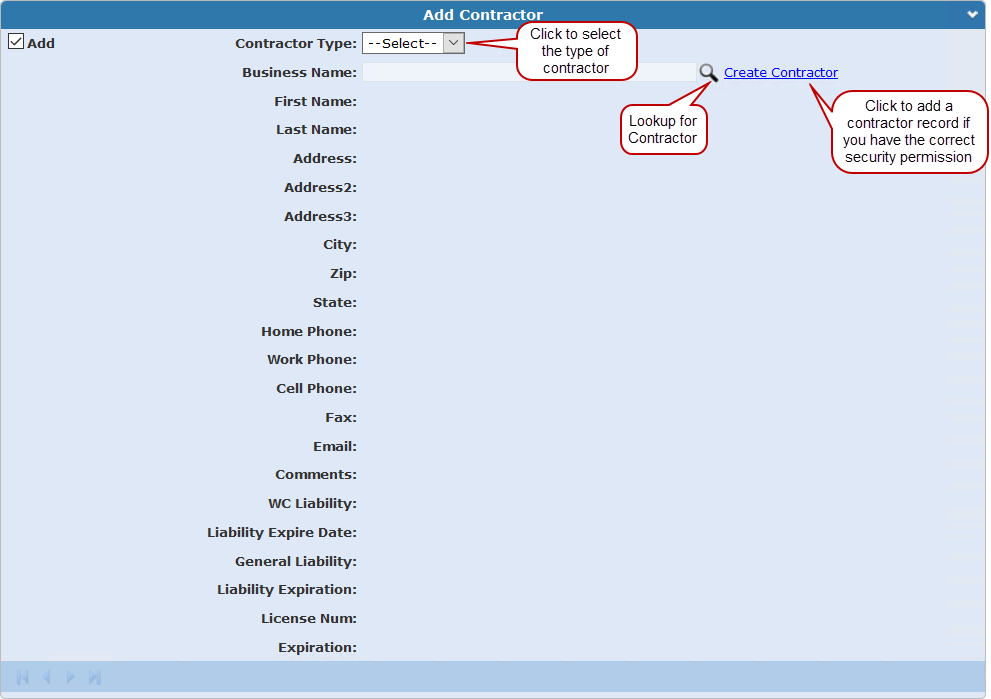
A contractor is a person or business that provides equipment, materials, or labor on a contract basis. Contractor information has already been configured by the administrator. The only fields open to edit are the Contractor Type and Business Name fields. All other fields will be filled in automatically once a contractor has been selected.
If one contractor is performing more than one type of work for the same case, the contractor's information must be added separately for each kind of work (for example, framing, plumbing, electrical, landscaping, and so on).
- Select the Contractor Type from the drop-down list.
- To add a contractor to the case,
- Select the check box(es) next to the business(es) in the
-
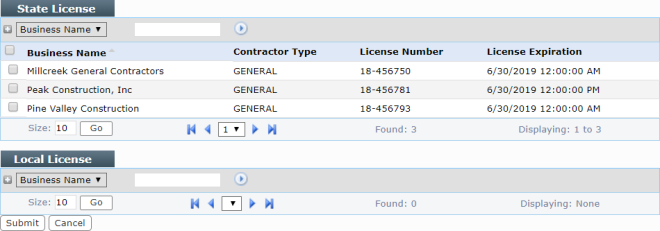
 IMPORTANT: If a contractor does not appear in the selection window,
The contractor's information automatically populates.
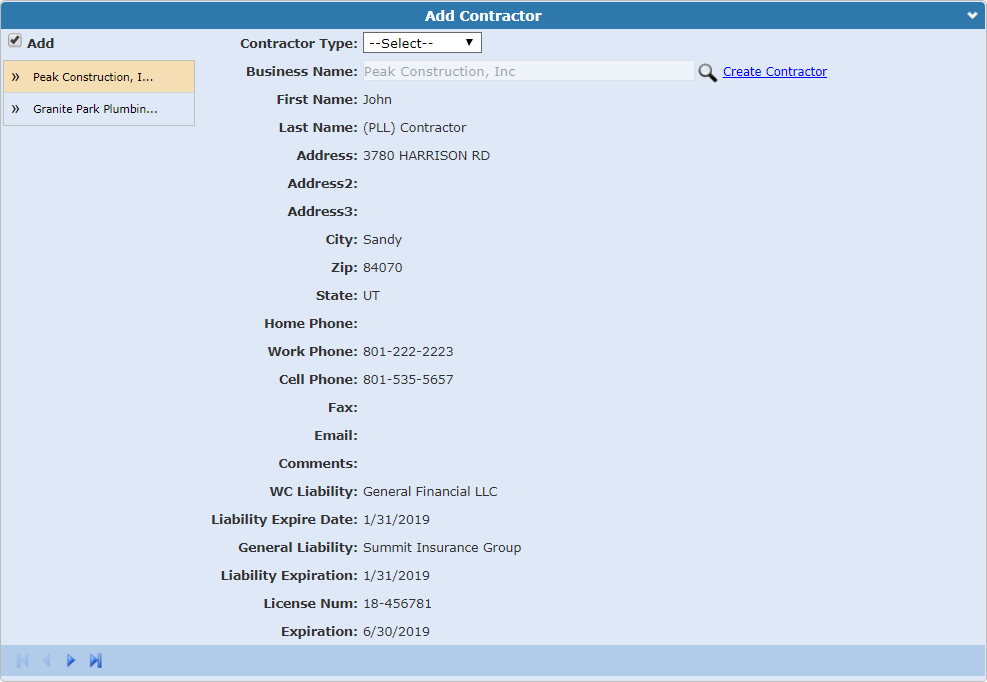
If there is more than one contractor selected, you can switch between them by selecting the one you want to view on the left-hand side of the panel, or by using the arrows at the bottom of the panel.
 NOTE: If you are adding contractors from the Summary page, you need to
For an explanation of the Contractor panel fields, see Condition Panel Fields.